Chrome Net Internals DNS: How to Clear DNS Cache and Fix Errors



Ever faced a situation where a website simply refuses to load, even though your internet is working perfectly? Or maybe you’ve seen errors like “DNS_PROBE_FINISHED_BAD_CONFIG” or “This site can’t be reached”? These issues are more common than you think, and often, they’re linked to your browser’s stored DNS data.
That’s where chrome net internals dns comes into play. It’s a powerful, hidden Chrome feature that helps you clear outdated DNS records and resolve browsing issues quickly. Instead of diving into complicated system settings, you can fix many problems directly from your browser using this tool.
In this guide, we’ll break everything down in a simple and practical way so you can understand and use it like a pro.
What is DNS?
DNS stands for Domain Name System. Think of it as the internet’s phonebook.
When you type a website like google.com, your browser doesn’t actually understand that name. Instead, it needs an IP address (a numerical label like 142.250.183.206) to locate the server.
DNS translates:
- Human-friendly domain names → Machine-friendly IP addresses
Example:
Typing youtube.com → DNS converts it → Connects you to the correct server.
Without DNS, you’d have to remember long numbers for every website—which is obviously not practical.
Read Our Blog: Top 20 Listed Data Center Companies in India
What is DNS Cache?
It is a temporary storage system that saves DNS lookup results on your browser or device.
How it works:
- When you visit a website, the DNS info is stored locally.
- Next time you visit the same site, your browser uses the stored data instead of querying DNS again.
- This speeds up browsing.
But here’s the catch:
Sometimes, the DNS Cache becomes outdated or corrupted.
Problems caused by outdated DNS Cache:
- Websites not loading
- Redirecting to wrong pages
- Showing old versions of websites
- DNS-related errors
What is Chrome Net Internals DNS?
It is a built-in diagnostic tool in Google Chrome that allows users to view and manage DNS-related data stored by the browser.
It gives you access to:
- DNS Cache entries
- Host resolver cache
- Network logs
Unlike system-level DNS clearing, chrome net internals dns works specifically for Chrome. This means you can fix browser-specific issues without affecting your entire system.
It’s especially useful for:
- Developers
- Digital marketers
- Regular users facing website loading issues
How to Clear DNS Cache Using Chrome Net Internals DNS (Step-by-Step)
Follow these steps:
- Open Google Chrome
- In the address bar, type chrome://net-internals/#dns.
- Press Enter
- You’ll see the DNS section
- Click on “Clear host cache.”
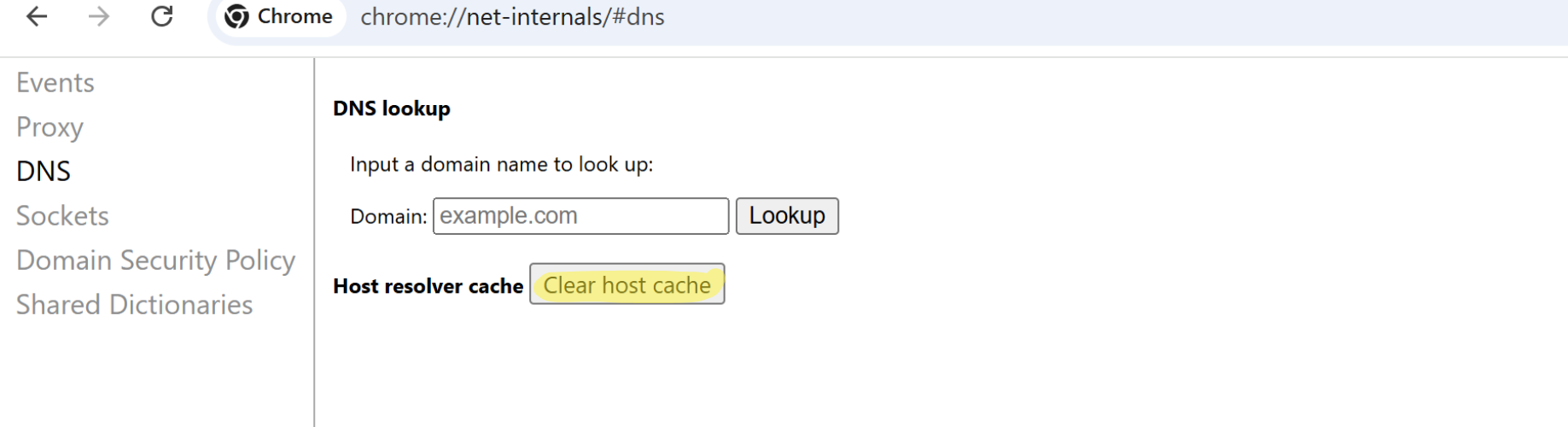
- Now, go to chrome://net-internals/#sockets.
- Click on:
- “Flush socket pools”
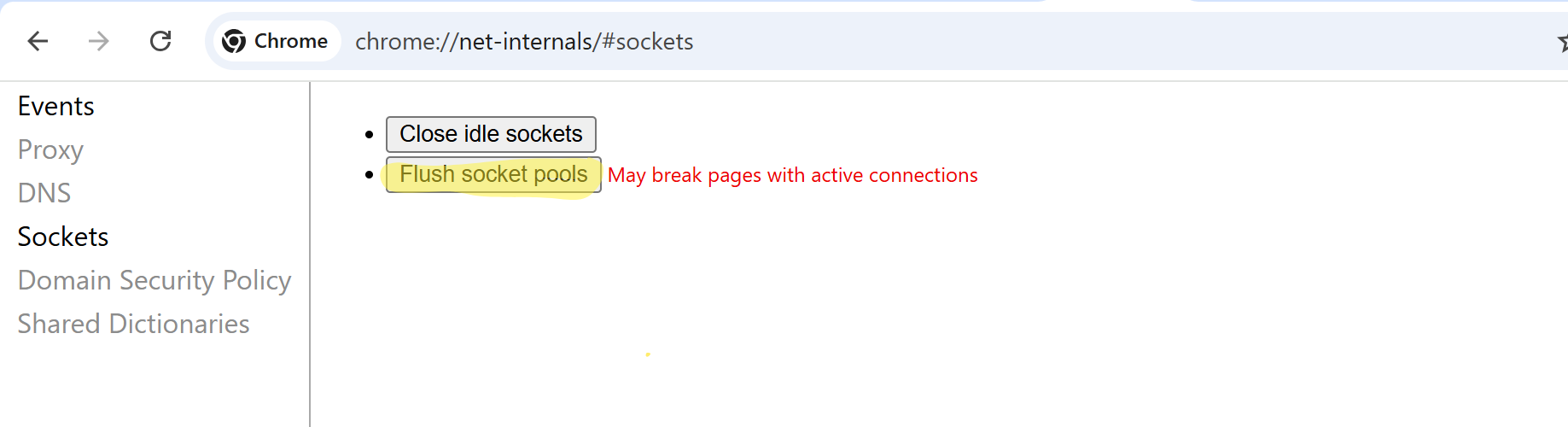
Done!
You’ve successfully cleared the DNS Cache using chrome net internals dns.
When Should You Clear DNS Cache?
You don’t need to clear the DNS Cache daily—but there are certain situations where it becomes necessary.
Common scenarios:
- Website not loading properly
- Seeing outdated website content
- DNS errors like
- DNS_PROBE_FINISHED_NXDOMAIN
- DNS server not responding
- Website recently updated but the changes are not visible
- Switching hosting or domain settings
- After changing DNS servers
In all these cases, using chrome net internals dns can instantly resolve the issue.
Benefits of Clearing DNS Cache
- Fixes website loading issues
- Removes outdated DNS records
- Improves browsing accuracy
- Helps access updated website versions
- Resolves DNS-related errors quickly
- Enhances browser performance
Common Issues and Fixes
Even after clearing the DNS Cache, some problems may persist. Here are a few common issues and how to fix them:
1. Website still not loading
- Restart your browser
- Check internet connection
- Try incognito mode
2. DNS errors continue
- Flush system DNS:
- Windows: ipconfig /flushdns
- Change DNS server (Google DNS: 8.8.8.8)
3. Slow browsing
- Clear browser cache (not just DNS Cache)
- Disable unnecessary extensions
4. Incorrect website version
- Hard refresh:
- Ctrl + Shift + R
- Ctrl + Shift + R
5. Network-related issues
- Restart your router
- Check firewall settings
Conclusion
DNS-related issues can be frustrating, especially when you don’t know what’s causing them. But the good news is you don’t need advanced technical skills to fix them.
With chrome net internals dns, you get a simple and effective way to clear the DNS Cache directly from your browser. Whether it’s a website not loading, outdated content, or DNS errors, this tool can resolve most issues in seconds.
Make it a habit to use chrome net internals dns whenever you face browsing problems it’s quick, safe, and highly effective.
FAQs
1. What is chrome net internals dns used for?
It is used to view and clear the DNS Cache stored in the Chrome browser, helping fix website loading and DNS-related issues.
- Is clearing DNS Cache safe?
Yes, clearing the DNS Cache is completely safe. It only removes temporarily stored data and forces your browser to fetch fresh DNS information.
- How often should I clear the DNS Cache?
You don’t need to do it regularly. Only clear the Cache when you face issues like website errors, outdated content, or connectivity problems.
- Does chrome net internals dns affect system DNS?
No, chrome net internals dns only clears the DNS Cache within Chrome. It does not affect your system-wide DNS settings.
- Why is my website not updating even after clearing the DNS Cache?
If the issue persists, try:
- Clearing browser cache
- Flushing system DNS
- Waiting for DNS propagation (can take up to 24–48 hours)