How to Backup Mails in Gmail



Have you ever accidentally deleted an important email and panicked because you couldn’t find it? Or maybe you switched phones and lost all your messages? It’s more common than you think.
The good news is that learning how to backup mail in Gmail is easier than you’d expect, and it takes just a few minutes.
In this blog post, we’ll walk you through 3 simple, beginner-friendly methods to create a mail backup, so your important emails are always safe, even if something goes wrong with your account.
No technical skills needed. Let’s get started!
Why Gmail Backup is Important
Before we jump into the steps, let’s quickly understand why having a Gmail backup matters:
- Accidental deletion: Emails can be permanently deleted from the Trash after 30 days.
- Account hacking: If someone gains access to your account, they could delete everything.
- Google account suspension: In rare cases, Google can suspend accounts, cutting off access to all your emails.
- Switching email providers: If you ever want to move away from Gmail, a backup makes migrating your emails painless.
- Peace of mind: Important business emails, receipts, or personal conversations deserve a safe copy.
Creating a regular Gmail backup is a simple habit that can save you a lot of stress later.
How to Backup Mails in Gmail Using Google Takeout (Easiest Method)
Google Takeout is Google’s own free tool that lets you download a copy of all your Gmail data directly to your computer. It’s the simplest way to do a full Gmail backup.
Step-by-Step Guide:
- Go to Google Takeout: Open your browser and visit takeout.google.com. Make sure you’re signed in to your Gmail account.
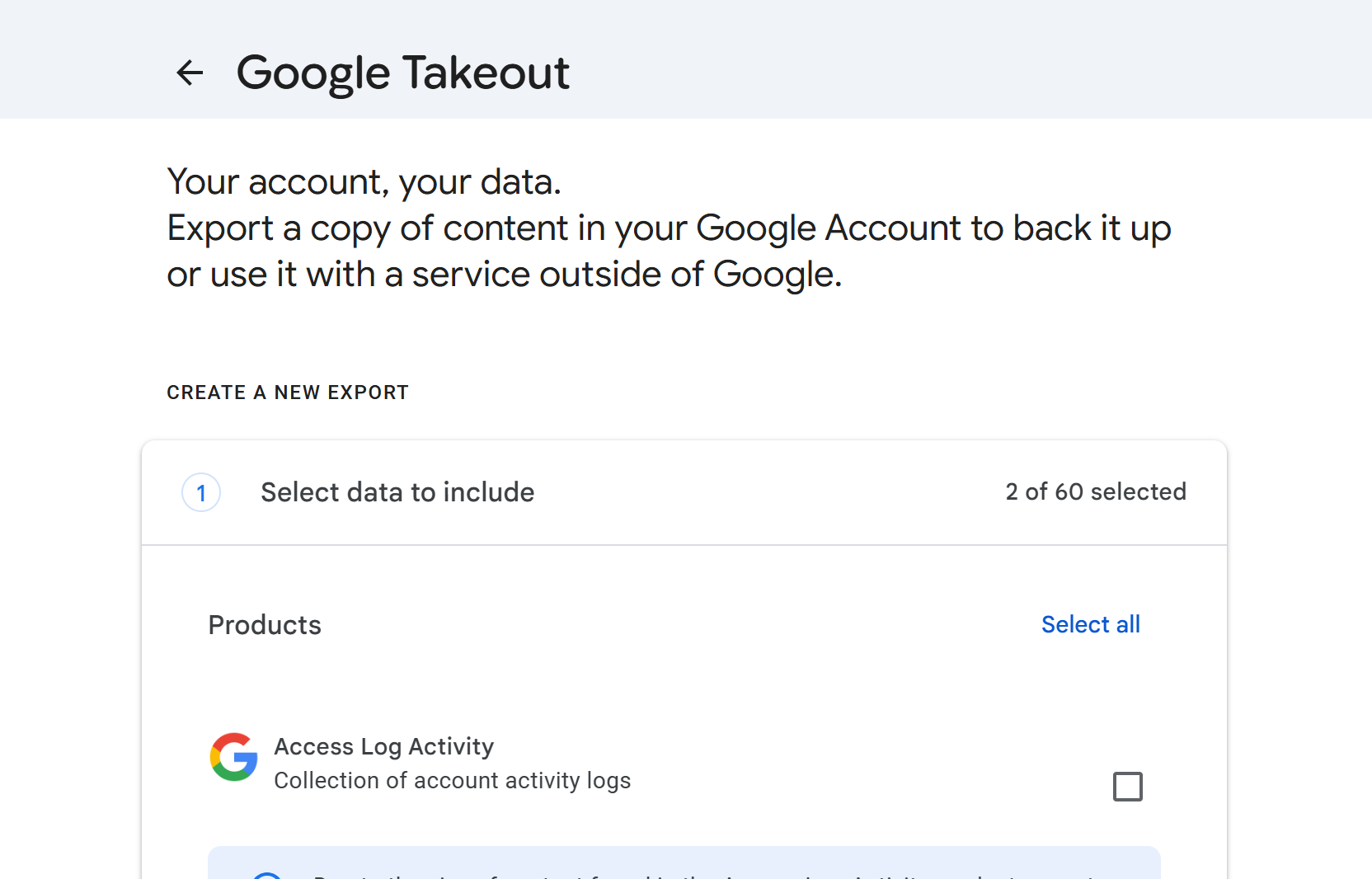
- Deselect Everything First: Click the “Deselect all” button at the top of the list. This ensures you only download Gmail data and not everything from your Google account.
- Select Only Gmail: Scroll down and find “Mail” Check the box next to it. You can click “All Mail data included” to choose specific labels if needed.
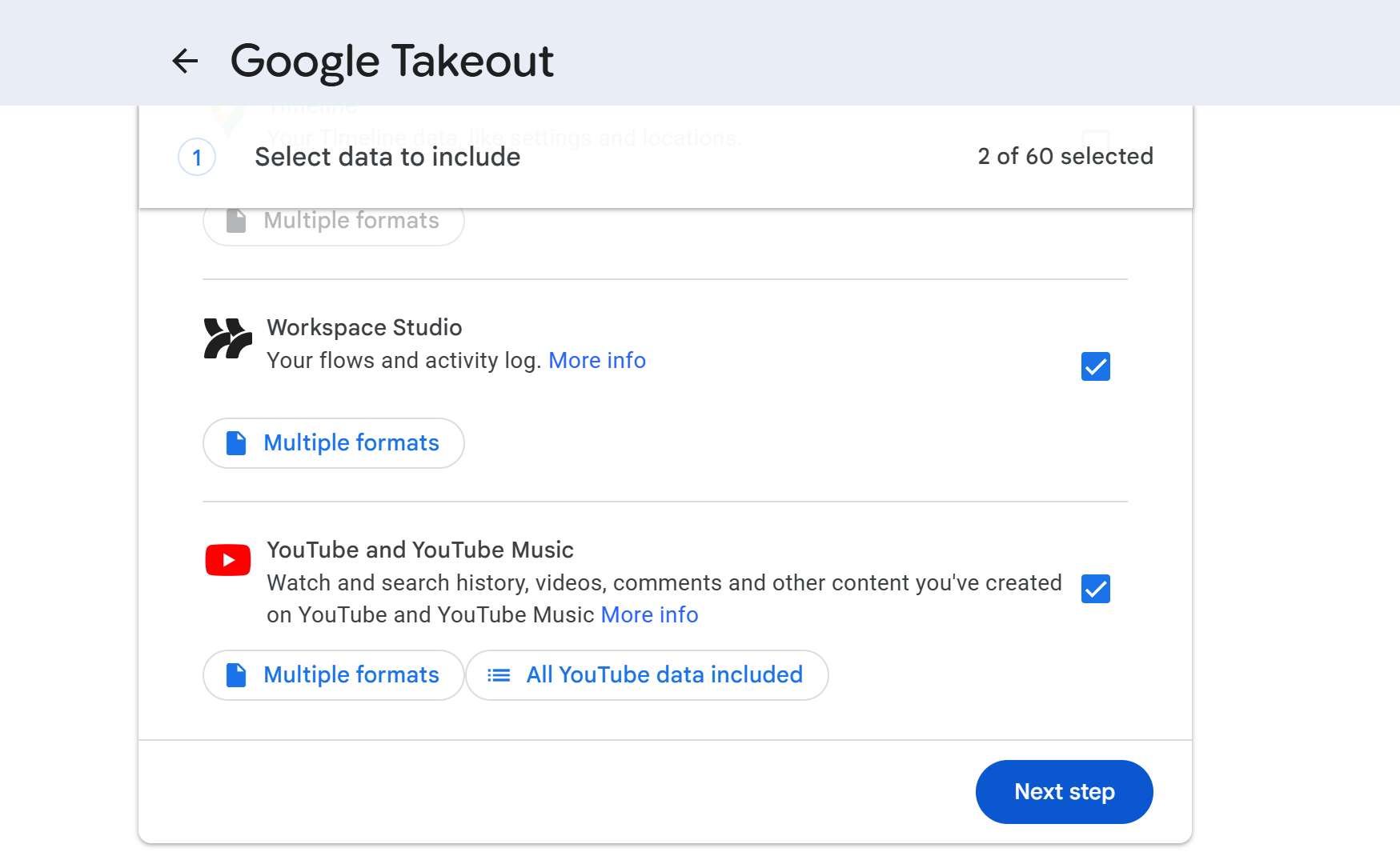
- Choose Your File Settings: Scroll to the bottom and click “Next step.” Choose your delivery method (we recommend “Send download link via email”), file type (.zip), and file size.
- Click ‘Create Export’: Hit the “Create export” button. Google will prepare your Gmail backup. This may take a few minutes to a few hours, depending on how many emails you have.
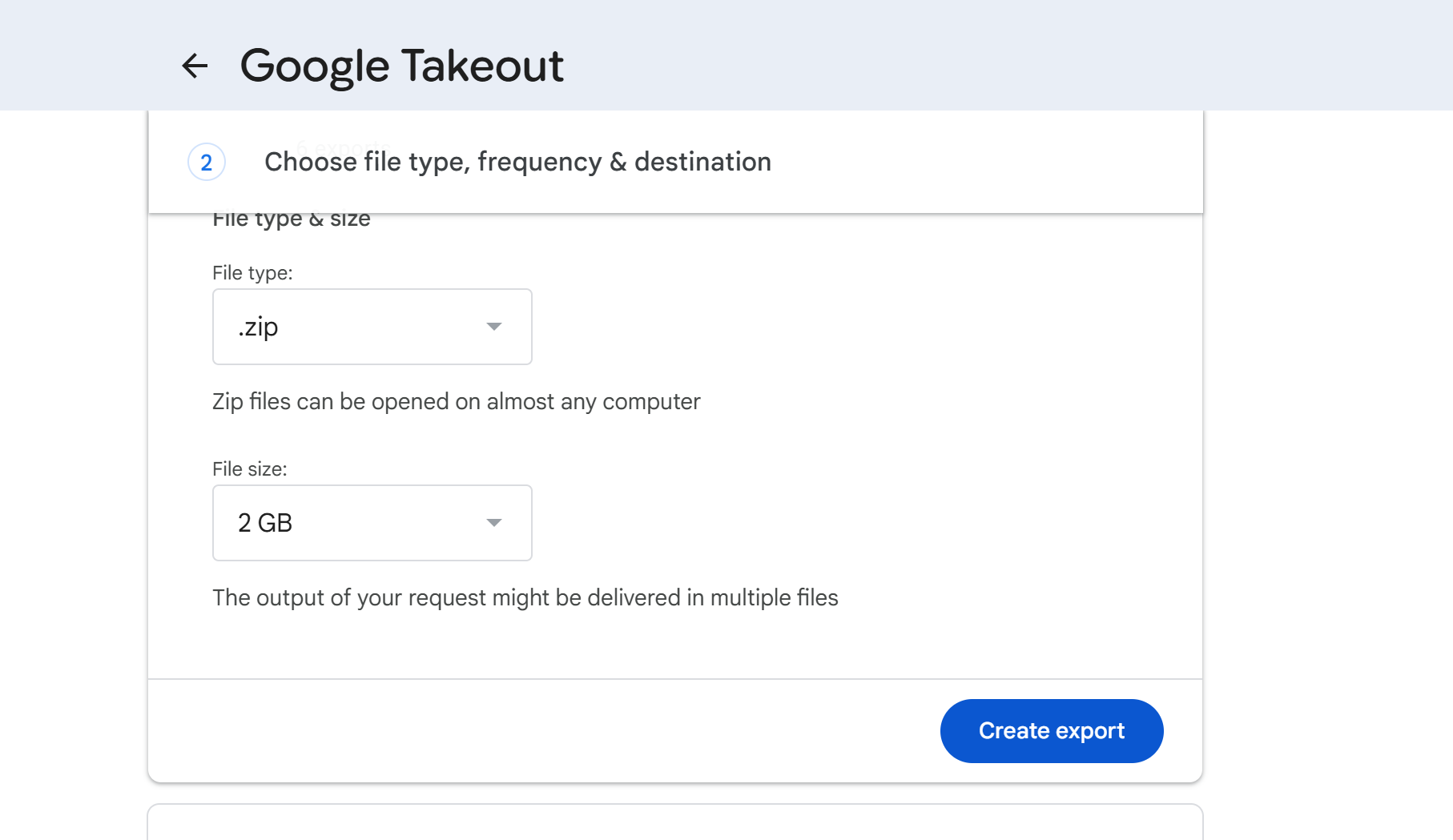
- Download Your Backup: You’ll receive an email from Google with a download link. Click the link and save the .zip file to your computer or external drive.
Tip: Store this file in an external hard drive or cloud storage like Google Drive for an extra layer of safety.
How to Backup Mails in Gmail Using Mozilla Thunderbird
Mozilla Thunderbird is a free, open-source email application. It lets you sync your Gmail account and store a local copy of all your emails automatically.
This is a great option if you want an ongoing, automatic Gmail backup without repeating the process manually.
Step-by-Step Guide:
- Download Thunderbird: Visit thunderbird.net and download the free app for your operating system (Windows, Mac, or Linux). Install it normally.
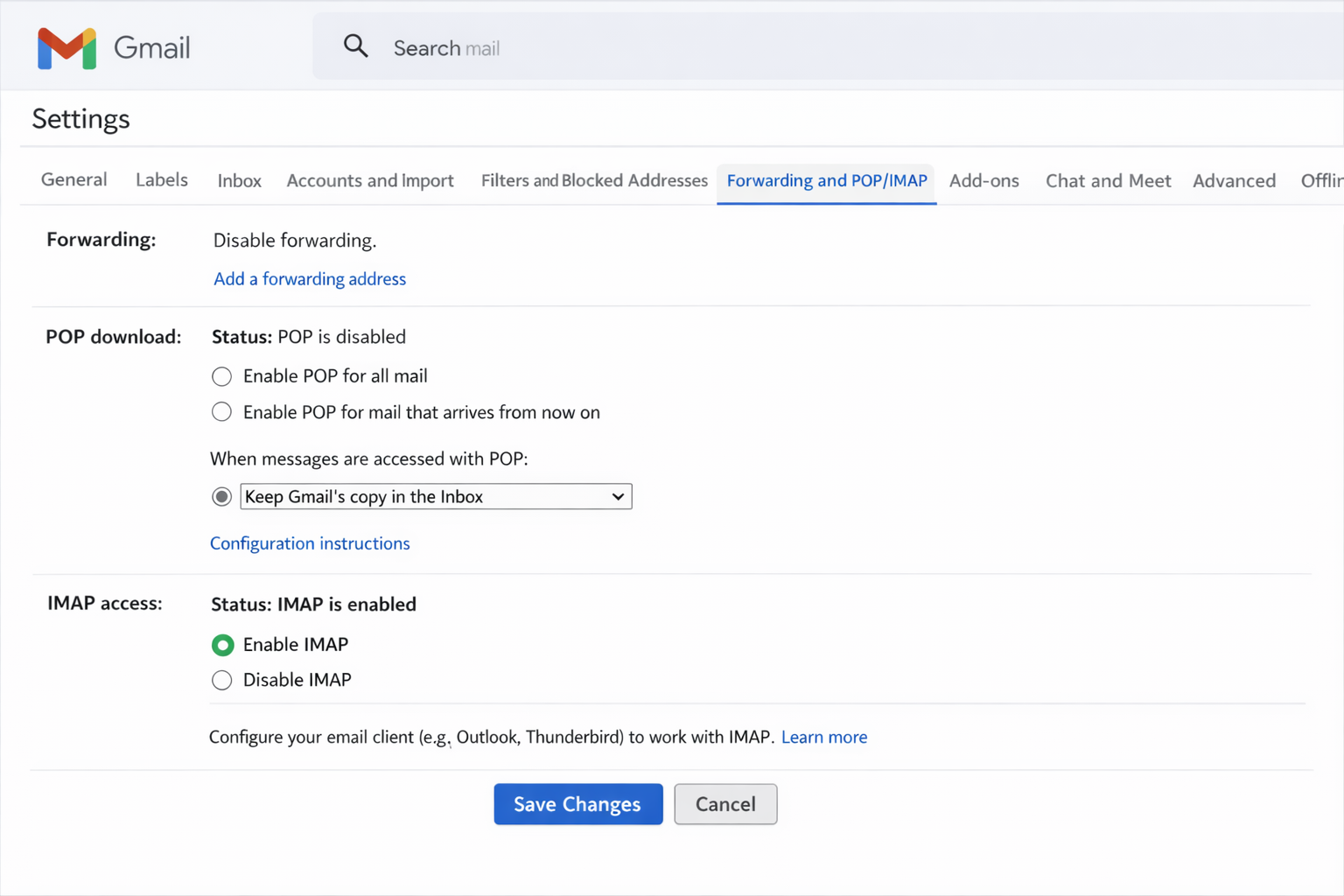
- Enable IMAP in Gmail: In Gmail, go to Settings → See all settings → Forwarding and POP/IMAP. Under the IMAP Access section, select “Enable IMAP” and save your changes.
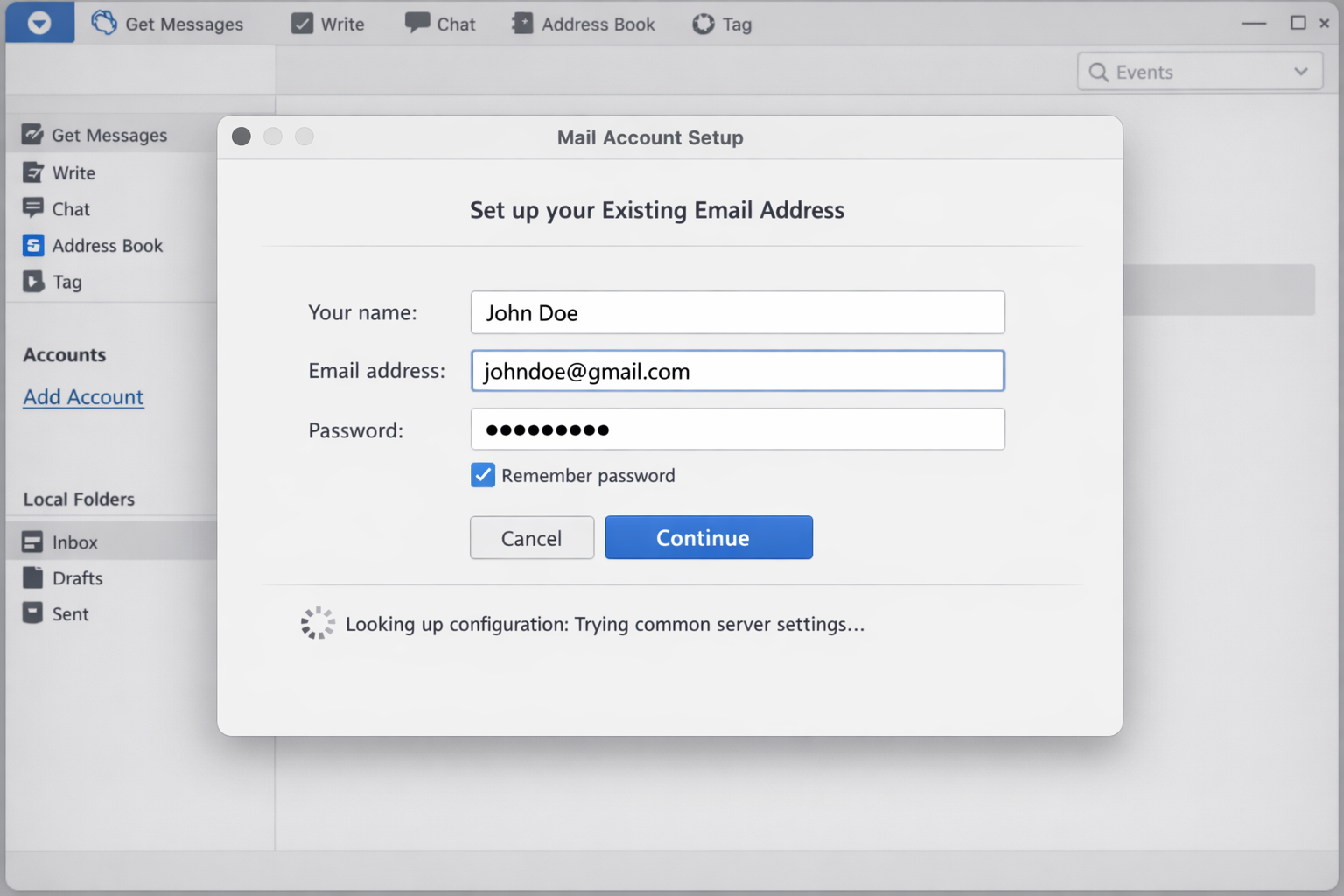
- Add Your Gmail Account in Thunderbird: Open Thunderbird and click “Add Account.” Enter your name, Gmail address, and password. Thunderbird will detect Gmail settings automatically.
- Allow Access: A Google sign-in window will pop up. Sign in and click “Allow” to give Thunderbird permission to access your Gmail.
- Let Emails Sync: Thunderbird will begin downloading all your emails to your computer. This creates a local Gmail backup. Depending on your inbox size, it may take some time.
- Keep Thunderbird Running: Every time you open Thunderbird, it automatically syncs new emails, giving you a constantly updated Gmail backup on your device.
How to Backup a Single Email Manually
If you only need to save one or two important emails, you don’t need any special tool. Gmail lets you download individual emails as .eml files.
Quick Steps:
- Open the email you want to save.
- Click the three-dot menu (⋮) at the top-right corner of the email.
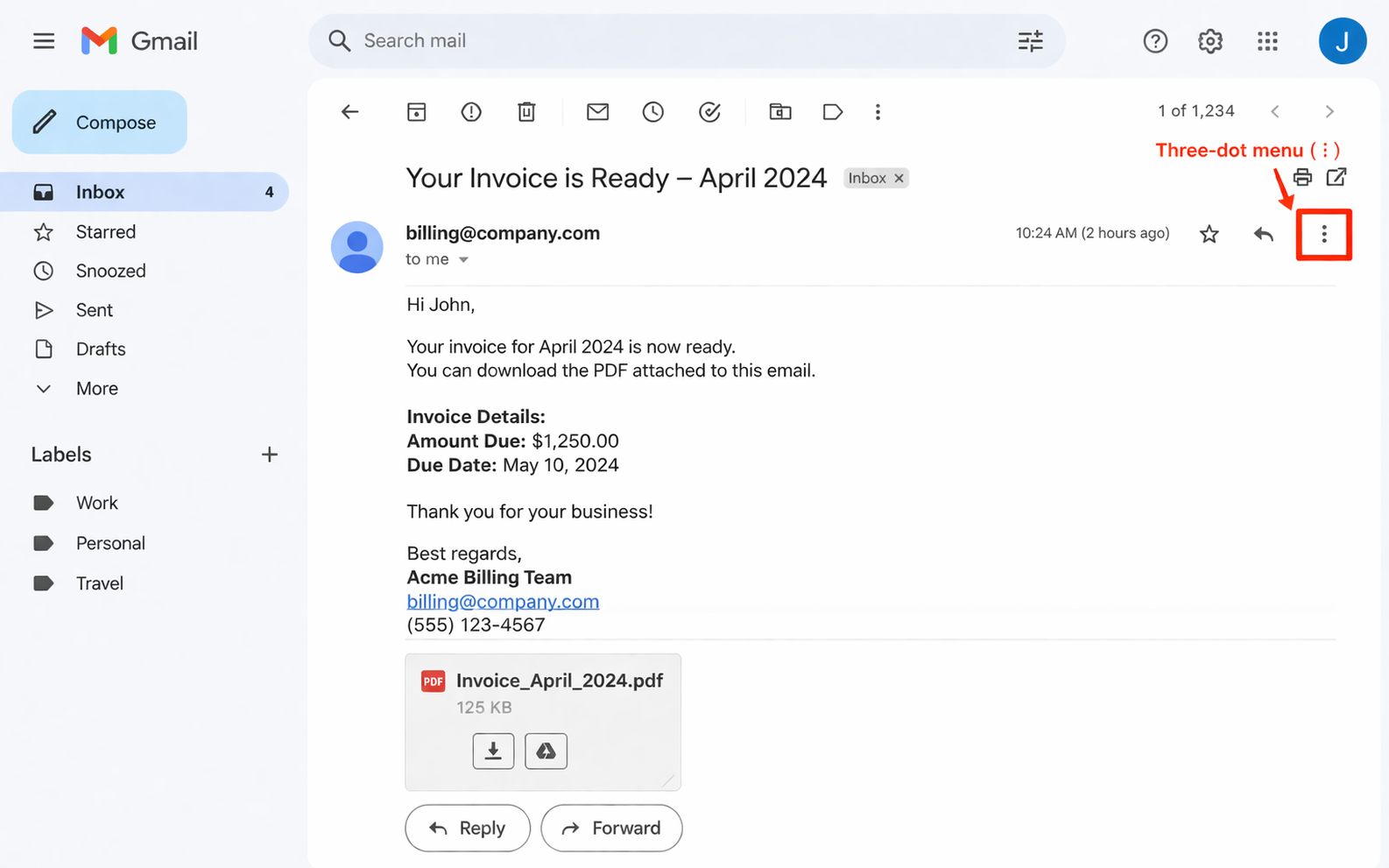
- Click “Download message” from the dropdown.
- The email will be saved as an .eml file on your computer.
- You can open .eml files with any email client like Thunderbird or Outlook.
Best for: Saving receipts, contracts, or any single email you want to keep forever.
Gmail Backup Methods Comparison Table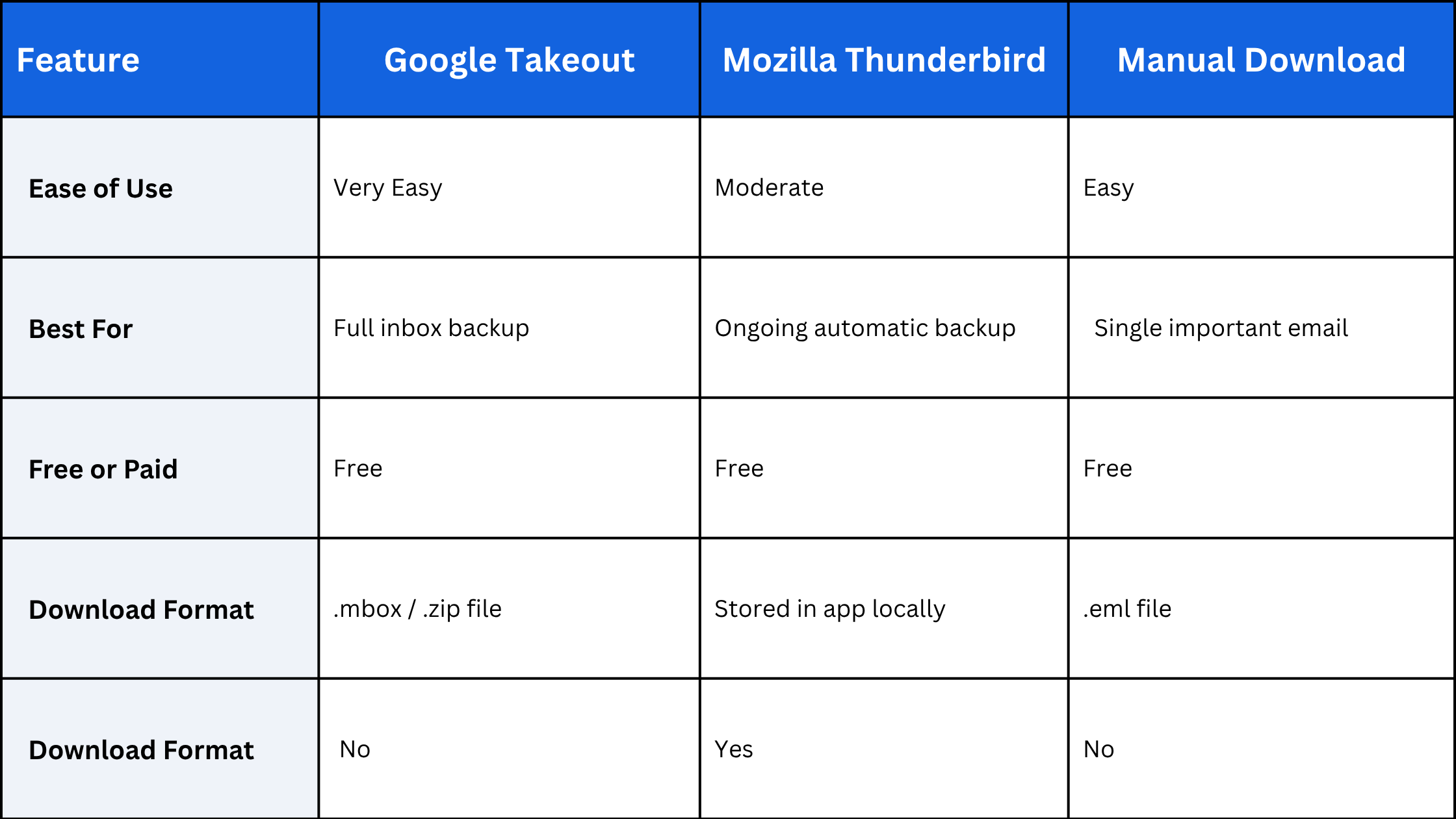
Also Using Outlook?
If you also manage emails on Microsoft Outlook, it’s worth knowing how to recall a sent email in Outlook, a handy trick that can save you from sending embarrassing messages to the wrong person. Check out our detailed guide on how to recall mail in Outlook for a step-by-step walkthrough.
Don’t Wait Until It’s Too Late
Losing important emails can be stressful and sometimes even costly, especially for work or business communication. The good thing is that setting up a Gmail backup takes less than 10 minutes and can save you from a lot of trouble down the line.
Here’s a quick recap of what you’ve learned:
- Google Takeout: Best for a quick, full Gmail backup with no software needed
- Mozilla Thunderbird: Best for automatic, ongoing Gmail backup on your computer
- Manual Download: Best for saving individual important emails fast
All three methods are completely free, beginner-friendly, and take just a few steps to complete.
So don’t put it off any longer start your Gmail backup today! Your future self will thank you.